Blend Objects Seamlessly with Photoshop’s New Harmonize Tool

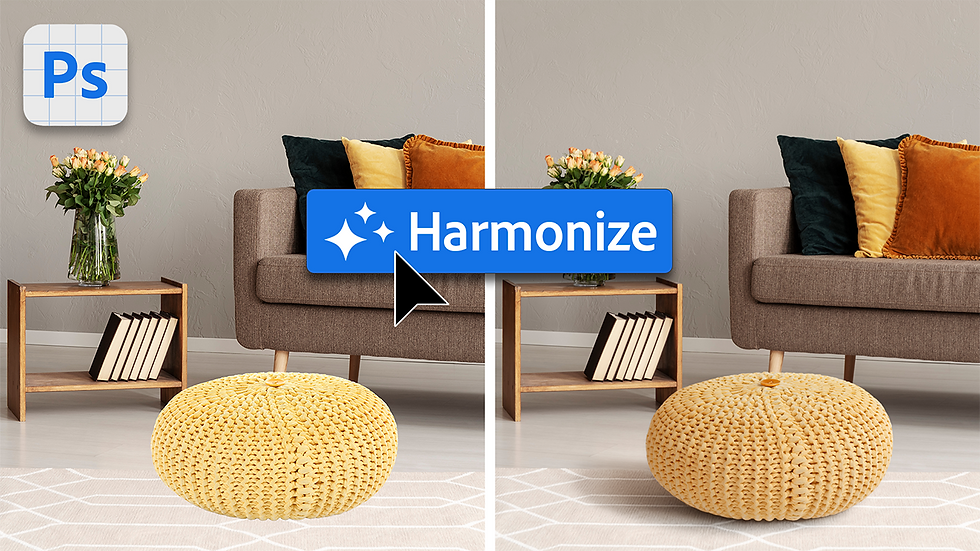
Adobe Photoshop (Beta) just got even smarter with a brand-new feature called Harmonize—and it’s a game-changer for photo compositing. This tool helps you match lighting, color, and tone automatically, so any object you place in a scene looks like it truly belongs there.
In this tutorial, learn how to apply it to objects and blend them seamlessly into a living room scene.
Click the link below to download the exercise files to follow along. (Note: Assets and files in this folder should only be used for this tutorial).
Step 1: Place Your Object
Start by opening the Living Space jpeg included in the exercise importing the Ottoman image into the scene. You can drag and drop it into your Photoshop document or use File > Place Embedded. Resize and position it where it looks best in the composition.
Step 2: Remove Background
With the Ottoman image layer selected, from the Contextual Task Bar, click the Remove Background button to remove the white background from the image. The Contextual Task Bar be opened by going to Window > Contextual Task Bar.
Step 3: Apply Harmonize Tool
With the Ottoman image layer still selected, go to the Contextual Task Bar (or the Edit menu in Photoshop Beta) and choose Harmonize. This tool analyzes the lighting, shadows, and colors of your scene.
Step 4: Drag and Drop Second Image
Drag and drop the image of the framed artwork and with the Move tool, position it on the wall in the scene.
Step 5: Apply Harmonize Again
With the framed artwork image layer selected, from the Contextual Task Bar, click the Harmonize button again to blend it into the scene. Choose from one of the three variation options. If you're not satisfied, click Harmonize again to generate another 3 options.
Final Result
In just a few clicks, the objects harmonizes perfectly with the rest of the scene. No manual color correction, masking, or adjustment layers needed!