
Learn how to create a digital flip book using Adobe InDesign

Updated: Nov 25, 2025
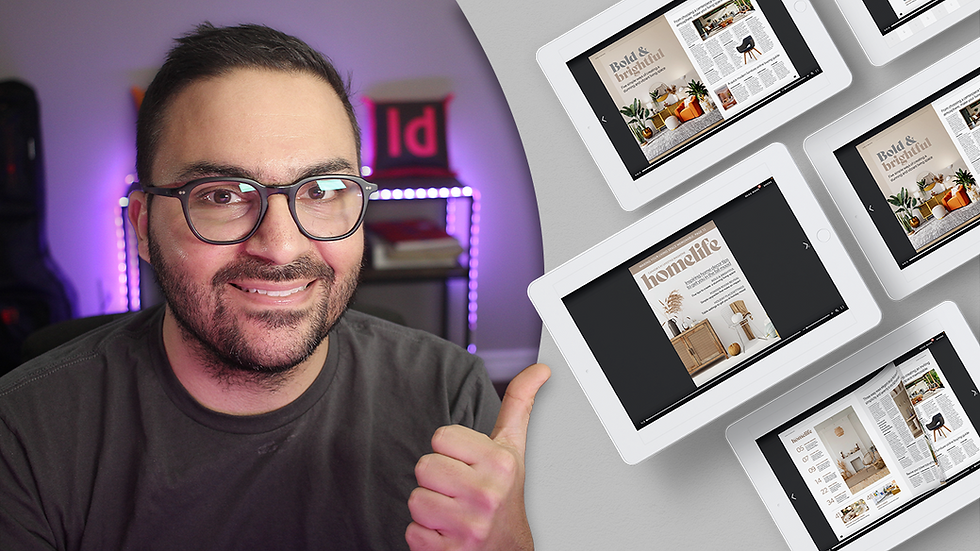
Are you able to make the pages flip in Adobe InDesign?
It's a question I get quite often from viewers on YouTube and other social media platforms. The quick answer is: you can't directly set a page flip effect when publishing a project online. However, there's a really cool plug-in integration in InDesign that can export your document as an HTML digital flipbook.
Issuu is a great web-based platform that allows publishers to quickly export a project as a PDF and view it in a web browser with a page-turn effect. Not only that, Issuu also allows you to add links and embed video to a project once it's been published.
Follow along in this tutorial and learn how to design a home and lifestyle magazine layout consisting of a cover page and two spreads using InDesign.
Also, in this tutorial you'll need to activate Adobe fonts Bely and Gibson in order for the template to work.
If you'd like to follow along in this tutorial, you can download the template and files in the link below.
Acquiring the Issuu extension from the Adobe Exchange marketplace is rather simple. Here's how.
First, while you have InDesign running, go to Window > Find Extensions on Exchange.
This will launch the Adobe Exchange webpage, where you can search for the Issuu plug-in.
In the search bar, type in Issuu and the Issuu Publish plug-in will appear. Click the "Free" button in the upper-right corner of the page and it will be added to your Adobe Creative Cloud plug-ins.
However, this doesn't install it completely. You still have to launch the Adobe CC desktop or web app to finish installing the plug-in.
Once it's been installed, you will have to re-launch InDesign.
Once re-launched, you can find the plug-in by going to Window > Extensions > Issuu - Publish a document.

When the document is ready go live and published to Issuu, use that method and another window will launch.
It's important to note that you will need an Issuu account – even a basic plan – in order for the plug-in to work properly. You will be asked to connect to your account, so you can click Connect to Issuu.

Once connected, you can now publish the digital magazine to the Issuu platform. You will first have to confirm the rights of the document to protect the content before being published online.
You also have the option of publishing as Private and not Public, which can be found in the Settings tab to the right of the Publication tab.

Before publishing the digital flipbook, you can use the Settings tab in the upper left corner of the window for additional options. This is where you can choose to make the flip book Public or Unlisted. The latter will save a version to your drafts, where you can edit on the Issuu platform before making it Public.
In the settings, you can also apply the Type of project that you're publishing. In this case, because it's a digital magazine, you can choose Editorial from the dropdown menu. There are also options to let viewers download the publication, setting a backdate for the publication as well as have the detected links in the project visible.
Here's a look at the Settings window:

Great! Now that you've prepared your publication, it's time to hit the Publish Now button and share your project with the world.
Once it's on Issuu's platform, you are now able to add links and embed videos to the digital magazine. Here's how:
Adding Links
Click on the Add links and videos button located in the left side menu of the Issuu interface.
Choose which page in the document that you'd like to add the link to.
With the cross-hair cursor, draw a frame around the object or text you'd like to apply a link to.
Choose the type of link: Web, Video, Shopping or Page.
Here's a quick breakdown of the linking options:
Web: Copy and paste the URL in the Insert URL field.
Video: Copy and paste the YouTube or Vimeo URL in the Insert URL field. There are options to have the video embedded right into the project or use the Play in Overlay option to have a separate window launch when
Shopping: Copy and paste the URL from an online store in the Insert URL field. This is meant to highlight a product that viewers can purchase online.
Go to Page: Set the Action dropdown to Go to Page, Next or Previous. If you choose Go to Page, insert the page number in the next field.
It's important to note that these options to apply links and embed videos require a Premium Plan. Montilla Design viewers can get access to one of Issuu's annual plans for 25% off, using the coupon code ANGELO25.
Finally, test out your flip book. You can click the View Live link, which will launch the publication using the same URL that was generated when it was published from InDesign.

Need to make a change to the document? You can always go back to the InDesign document, make any required changes. Save the document and then go to to Window > Extensions > Issuu-Publish a document.
The same window will appear and the PDF will re-generate. Instead of Publish Now, you will notice the window says Publish Changes.


