
Learn How to Remove Objects from Images in Adobe InDesign

What if there was a way to remove objects from images directly in Adobe InDesign without breaking your workflow or ever leaving your layout?
With the new Adobe Express integration in InDesign, you can now remove objects from images without switching apps.
In this tutorial, we'll walk through a practical use case to remove a distracting object that obstructs a title or main headline in a layout.
Click the link below to download the tutorial exercise files and follow along step-by-step.
Firstly, you’ll need to open the Contextual Taskbar for this exercise. This can be found by going to Window > Contextual Taskbar.
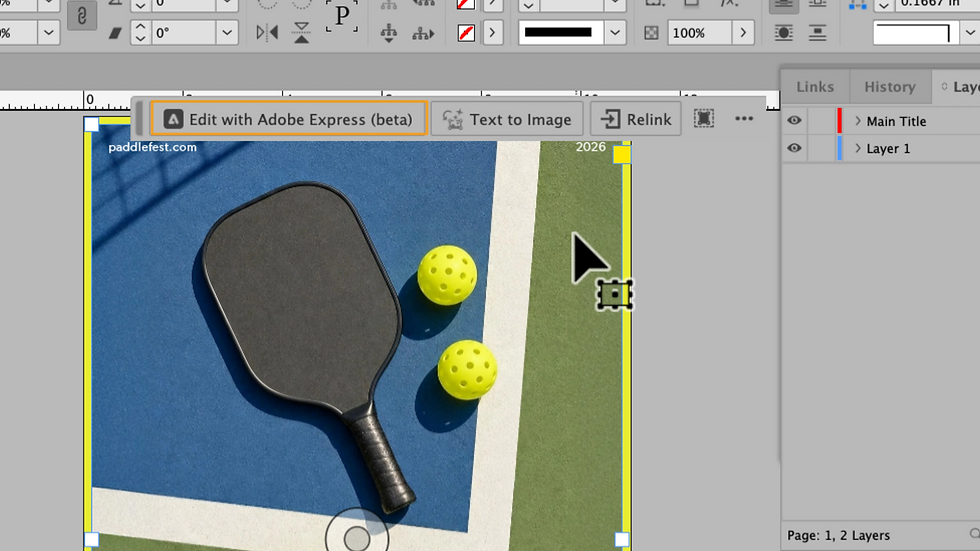
With the background image selected, in the Contextual Task Bar, select Edit with Adobe Express (beta). This launches the Express window inside of InDesign with all the image editing tools you’d see in Adobe Express on the web.
In this example, click on Remove Object. In the left menu, you can adjust the size of the brush before painting over the object to remove. For this case, let’s set the brush to 40 pixels. This will vary based on the object you’re looking to remove, however, in this example, 40 pixels is a good size.
Next, hover over the object or objects that you would like to remove and simply paint over the pixels. This doesn’t have to be perfect but try to stay within the boundaries of object you want to remove.
Once you have the area selected, simply click Remove in the bottom left corner of the window and watch as Adobe Firefly, built into Express, removes the pickleball seamlessly. It actually gives you three results to choose from. If you’re not pleased with any of the results, simply click Generate More to generate another set.
Once you select a version you like, click Apply to finalize the object removal.
As a last step, choose whether to replace the existing image on the page, or if you wanted to preserve the original, you could save it as a new image.
For this example, I'll simply replace the original and watch how it automatically updates on the page. Keep in mind that if you do save it as a new image, you’ll have to replace it manually.


