Unlock the Power of Adobe Photoshop Inside ChatGPT

Adobe Photoshop is now available in ChatGPT, giving both beginners and professional designers alike new way to edit and refine images.
In this tutorial, learn how the new Photoshop connector in ChatGPT works and how you can use it to get real, step-by-step help while you design. From understanding tools, fixing problems, and speeding up everyday tasks, this feature lets you work smarter.
There is an image available to practice along with this tutorial, or you can use one of your own photos to test out the power of this app.
Here is the photo we'll be uploading to ChatGPT and edit with Photoshop:

Click the link below to download it and follow along step-by-step.
To add the Photoshop app inside of ChatGPT, click on your profile icon in the bottom right corner of the screen and choose Settings.
From the left side menu options, click Apps, and then Explore Apps. Locate the Photoshop app and connect it to ChatGPT.
It's important to note that you do not need an Adobe account to access or use the Photoshop app inside of ChatGPT. However, having an Adobe account allows you to further edit the content in Photoshop on the web.

Once you have the Photoshop app connected to ChatGPT, let's activate it in a new chat.
Activate Photoshop app
With a new chat opened, click the plus symbol, choose More and then select the Photoshop app.
Now that the app is activated, add the image included in this tutorial by again clicking the plus icon and then choosing Add Photos & Files. You can also simply drag and drop the image inside of the chat box to upload it.
Next let's add the first text prompt. This will depend on what you want the edit - or action to be – but in this case, let's simply tell ChatGPT that we want to enhance the color of the image.
ChatGPT will provide you with multiple editing options to enhance the color and you can click on each one to preview the edits.
For example, in this case let's click on Vibrance. This will open the image in another window where you can add subtle adjustments using a slider.
The Vibrance in this case is set to 60. You can move the slider to the left to decrease he Vibrance amount, or move the slider to the right to increase the amount. In this case, let's set it to about 50.

Now that we've set up the Vibrance edit, let's focus on adjust the color of the sky. We can ask ChatGPT to isolate the sky to edit it separately.
Click the X icon in the top left to go back to the main chat and type the prompt "I'd like to adjust the color of the sky."
In this case, ChatGPT will re-generate the image (with the Vibrance adjustments already made) and you can now click on Hue and Saturation.
Set the Hue to about 40 and the Saturation to around 7.
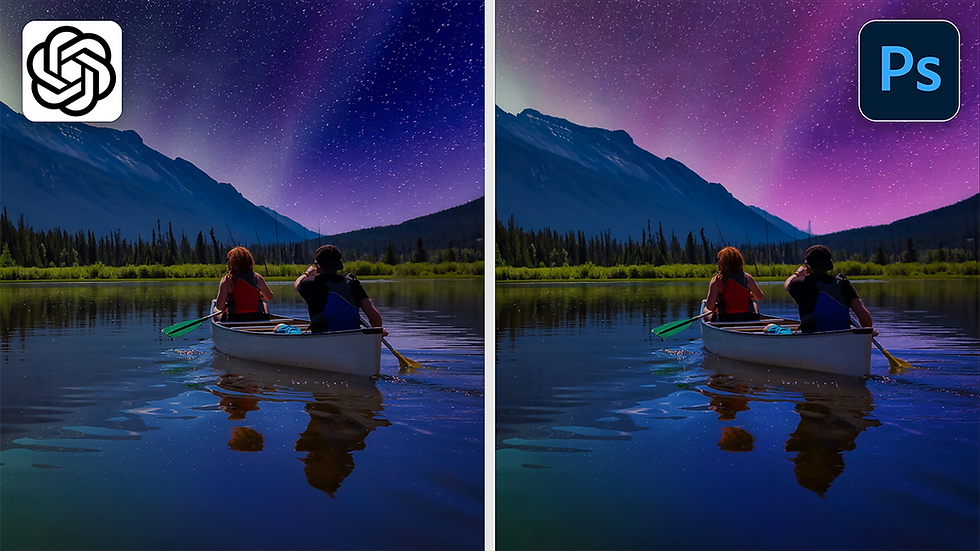
Here is a look at the difference in the sky with the Hue and Adjustment edits:

There's one more edit I'd like to make – adding some contrast between the sky and the water reflection.
Click the X icon to go back to the main chat and in the prompt box, type I'd like to add contrast between the sky and water reflection.
A version with the option to adjust Contrast will appear. Click that option and much like the other edits, adjust the slider left or right to decrease or increase the contrast, respectively. In this example, let's add a subtle increase of contrast. Maybe something like 28 will look good in this case.
Here's how that will look:

Now that I am happy with the image edits, you have two options.
First, if you don't have Photoshop and just wanted a quick way to enhance the photo, you can click the download button in the upper-left corner to download a PNG of the image.
If you're an Adobe subscriber, then you can open this in Photoshop on the web to further elevate the image with more advanced tools.
For example, if I click the Open in Photoshop option, ChatGPT will prepare the link which I can click and launch the image in the Photoshop web app.
Once the link has been created, you can click Ready to Open to launch it in Photoshop. You can see that the adjustments made in ChatGPT are honored on separate layers when it's opened in Photoshop.

From here you can further refine the adjustments or save a PSD and open it in Photoshop on desktop.